A customer walks into your retail store, selects several products, and approaches the billing counter. The cashier starts searching for each product manually, checks prices, enters quantities, and calculates the total.
Meanwhile, more customers join the queue.
What should be a simple checkout process becomes slow and frustrating.
This is a common challenge for retail businesses that depend on manual product entry.
A barcode POS system can make checkout faster by allowing cashiers to scan product barcodes instead of searching for every item manually.
When barcode scanning is connected with POS billing and inventory management, retailers can identify products more accurately, reduce entry mistakes, and maintain clearer sales and stock records.
For grocery stores, supermarkets, clothing shops, pharmacies, electronics retailers, and growing businesses, barcode POS software can be an important part of improving daily operations.
In this guide, we’ll explain how barcode POS systems work, their benefits, the equipment required, common mistakes to avoid, and how businesses can combine barcode billing with inventory management.
What Is a Barcode POS System?
A barcode POS system is a point of sale solution that uses barcode scanning to identify products, retrieve their information, and add them to a sales transaction.
Instead of typing a product name or searching through a long product list, a cashier scans the barcode attached to the product.
The POS software identifies the corresponding product record and retrieves information such as its name, price, and other configured details.
The cashier can then complete the transaction using the selected payment method.
Quick Answer: How Does a Barcode POS System Work?
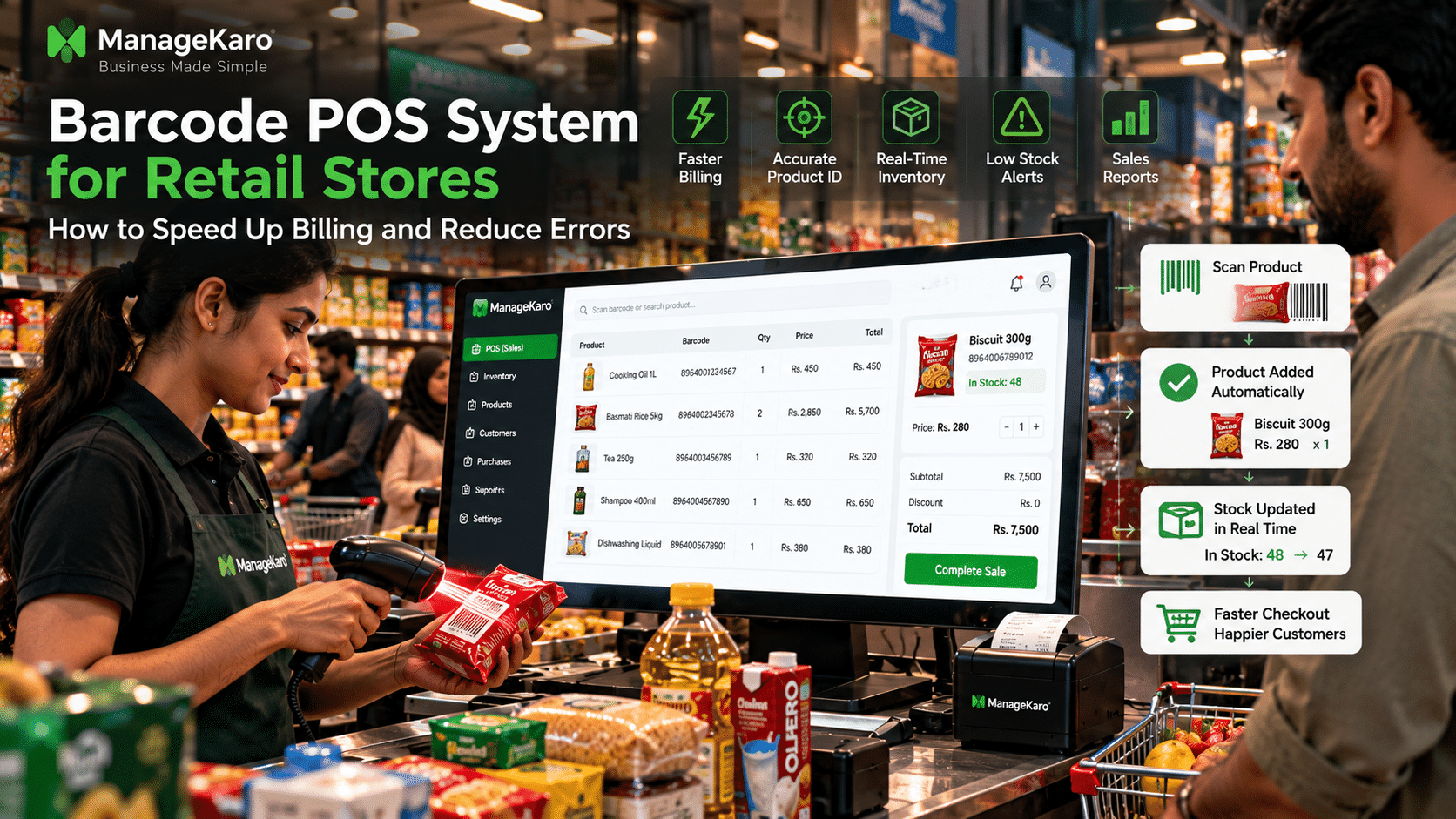
A barcode POS system works by reading a product’s barcode using a scanner or compatible device. The scanned code is matched with a product record in the POS database, allowing the cashier to add the correct product to the bill.
When integrated with inventory management, completed sales can also update recorded stock quantities.
For example, if a shop has 40 units of a product and sells 3 units through its barcode POS system, the recorded stock can decrease to 37 units.
This helps connect checkout activity with inventory tracking.
Why Retail Stores Need Barcode POS Software
Retail stores handle many products and customer transactions every day.
Manually searching for products can become difficult when the catalogue grows.
Consider a retail store selling 3,000 different items.
Some products may have similar names, packaging, prices, or variations. Employees may accidentally select the wrong product or enter an incorrect price.
A barcode POS system helps simplify this process by using product identifiers.
Common Problems With Manual Billing
Retail businesses without organized barcode billing may experience:
- Slow product searches
- Long checkout queues
- Incorrect product selection
- Wrong prices
- Manual typing mistakes
- Duplicate product records
- Inconsistent sales information
- Difficulty identifying product variants
- Confusing inventory records
Barcode scanning can reduce several of these problems when product records and barcode mappings are maintained correctly.
How Barcode POS Systems Work in Retail Stores
The process begins before the customer reaches the checkout counter.
Products must first be configured correctly in the POS system.
Step 1: Create Product Records
The business adds products to its inventory or POS database.
Each product record may include:
- Product name
- SKU
- Barcode number
- Category
- Selling price
- Purchase cost
- Stock quantity
- Supplier
- Unit of measurement
These details help the system identify the correct item.
Step 2: Assign or Register Barcodes
Products may already have manufacturer barcodes.
For products without suitable barcodes, businesses can create internal product identifiers and print labels.
The barcode value must be associated with the correct product record.
Step 3: Scan Products at Checkout
When a customer purchases an item, the cashier scans its barcode.
The scanner sends the barcode value to the POS software.
Step 4: Retrieve Product Information
The POS system searches its database for the matching barcode.
If a match is found, the product can be added to the bill with its configured price and details.
Step 5: Complete the Sale
The cashier confirms the products, quantities, discounts, and payment method.
The system records the completed sale.
Step 6: Update Inventory Records
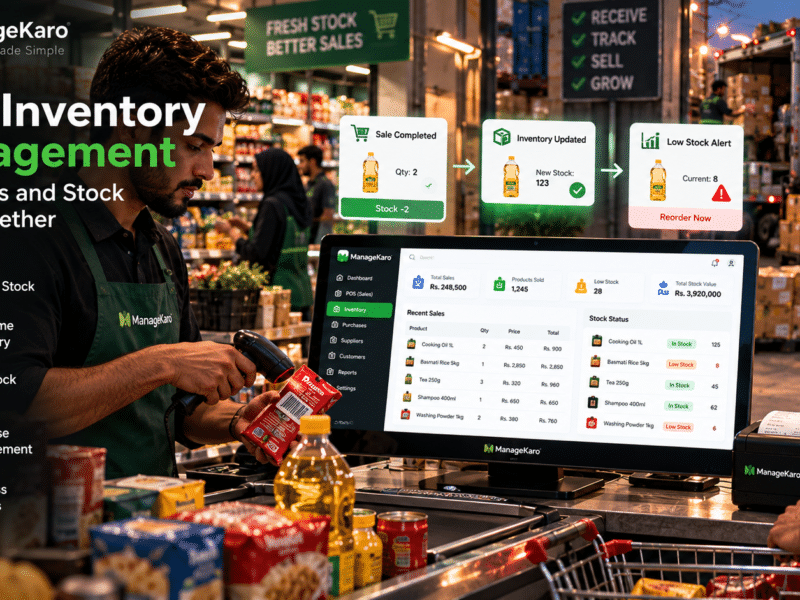
When POS billing and inventory are integrated, the completed transaction can trigger a stock deduction.
This creates a clearer connection between sales and available inventory.
7 Benefits of Using a Barcode POS System
1. Faster Checkout
Barcode scanning reduces the need to type product names or search manually.
This can make checkout faster, especially when customers purchase several products.
Faster billing is particularly valuable during busy shopping hours.
2. Fewer Product Selection Errors
Products with similar names can be difficult to distinguish.
For example, a store may sell several variations of the same shampoo brand.
Scanning the correct barcode helps the cashier select the intended product rather than choosing from similar search results.
However, barcode accuracy still depends on correct product configuration.
3. More Consistent Pricing
When product prices are stored in the POS database, scanning retrieves the configured price.
This reduces dependence on employees remembering product prices or entering them manually.
Owners should still review price changes and promotions regularly.
4. Better Inventory Tracking
When barcode billing is connected with inventory management, sales transactions can update stock records.
This helps businesses understand which products are being sold and how recorded inventory changes.
5. Easier Product Identification
Barcodes can help distinguish products that look similar.
This is useful for businesses selling products with different:
- Sizes
- Colours
- Flavours
- Packaging
- Quantities
- Models
- Variants
6. Improved Cashier Productivity
Cashiers can focus more on serving customers and completing transactions rather than searching through product lists.
This can make billing operations easier to manage.
7. Better Sales Reporting
When the correct product is recorded during checkout, sales reports become more reliable.
Owners can review product-wise sales, quantities sold, and sales trends using structured transaction data.
Barcode POS System vs Manual Billing
| Feature | Manual Billing | Barcode POS System |
|---|---|---|
| Product identification | Manual search or entry | Barcode scanning |
| Checkout speed | Depends on manual entry | Often faster |
| Product selection | Greater chance of selection errors | More consistent with correct barcode mapping |
| Price retrieval | Manual or product search | Retrieved from product database |
| Product variants | Can be confusing | Identified using distinct codes |
| Inventory connection | May require separate updates | Can integrate with stock tracking |
| Staff training | Manual product knowledge | Requires scanner and POS training |
| Reporting | Depends on record quality | Structured product-level transactions |
For stores with large product catalogues or frequent transactions, barcode billing can offer practical advantages.
Types of Barcode Scanners for Retail POS Systems
Different retail businesses may require different scanning equipment.
Understanding the options can help owners avoid unnecessary hardware purchases.
1. Handheld Barcode Scanners
Handheld scanners are commonly used at retail counters.
Employees point the scanner at the product barcode to identify the item.
They are useful for general stores, clothing shops, electronics retailers, and other businesses.
2. Wireless Barcode Scanners
Wireless scanners allow employees to scan products without remaining connected to the computer by a cable.
They can be useful for larger products or checkout counters where greater movement is needed.
3. Presentation Barcode Scanners
Presentation scanners are designed for products to be passed in front of a fixed scanning area.
They are commonly suited to busy checkout environments.
4. Mobile Barcode Scanning
Some POS applications support barcode scanning through a smartphone or tablet camera.
This may be useful for businesses that need a portable setup.
Availability depends on the POS application and device.
5. 1D and 2D Barcode Scanners
A 1D scanner reads supported linear barcode formats.
A 2D scanner can read supported two-dimensional codes, such as QR codes, and often linear barcodes as well.
Retailers should choose equipment based on the barcode formats they need to scan.
How Barcode POS Systems Connect With Inventory Management
Barcode scanning and inventory management perform different functions.
Barcode scanning identifies the product. Inventory management tracks the product’s quantity and movement.
When connected, these functions help create a more organized retail workflow.
Example: Barcode Billing and Stock Updates
Imagine a grocery store selling bottled cooking oil.
| Activity | Quantity |
|---|---|
| Opening stock | 100 |
| Customer purchases 4 bottles | −4 |
| Remaining stock | 96 |
| Another customer purchases 6 bottles | −6 |
| Remaining stock | 90 |
| New stock received | +50 |
| Updated stock | 140 |
The barcode scanner identifies the product during checkout.
The POS system records the sale.
The inventory system records the corresponding stock movement.
This reduces the need to update stock manually after every transaction.
Why Accurate Product Mapping Matters
A barcode system is only as reliable as its product records.
If the same barcode is incorrectly assigned to multiple products, or if a product is mapped to the wrong item, scanning can create errors.
Businesses should check barcode assignments during product setup and whenever product packaging changes.
Barcode POS Systems for Different Retail Businesses
Grocery Stores and Supermarkets
Grocery stores often manage hundreds or thousands of packaged products.
Barcode scanning can help speed up checkout and identify products accurately.
Clothing and Fashion Stores
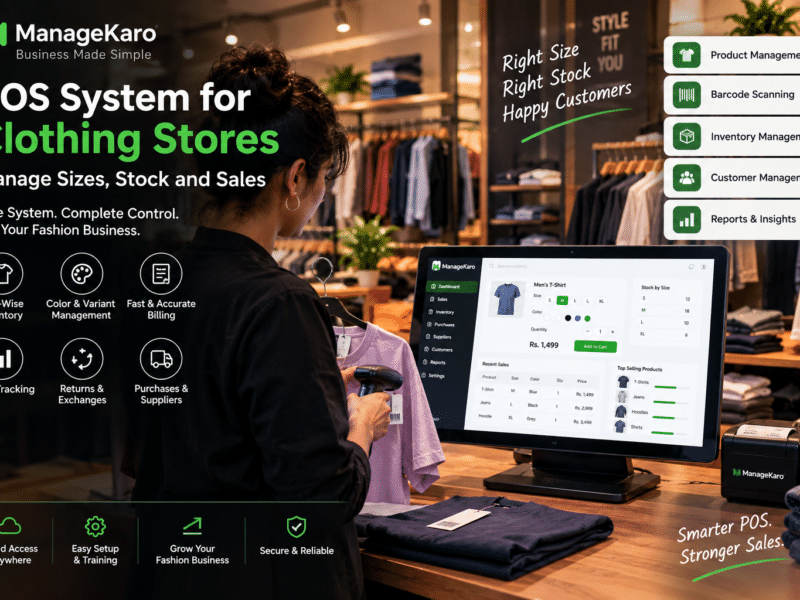
Clothing businesses frequently sell products in different sizes and colours.
A properly configured barcode system can distinguish individual product variants.
For example:
- Black shirt — Medium
- Black shirt — Large
- Blue shirt — Medium
- Blue shirt — Large
Each variation can have a separate barcode or SKU.
Electronics Stores
Electronics retailers can use barcode scanning for product identification and billing.
Businesses requiring serial-number or warranty tracking should confirm that their POS software supports those additional workflows.
Pharmacies
Pharmacies may use barcode systems to identify packaged products.
However, pharmacies also need appropriate controls for expiry dates, batches, and other regulated inventory requirements.
Barcode scanning alone does not provide these controls.
Hardware Stores
Hardware retailers often sell large product catalogues with similar items.
Barcode identification can help employees find the correct product during billing.
How to Set Up a Barcode POS System in Your Retail Store
A successful setup requires more than connecting a scanner.
Businesses should prepare their product records, test equipment, and train employees.
Step 1: Choose Compatible POS Software
Select POS software that supports your required barcode workflows.
Check compatibility with your scanner, operating system, product database, and receipt printer.
Step 2: Prepare Your Product Catalogue
Create accurate product records.
Use consistent product names, categories, SKUs, and prices.
Step 3: Register Product Barcodes
Connect each barcode to the correct product record.
For products without manufacturer barcodes, create suitable internal labels.
Step 4: Connect the Barcode Scanner
Connect the scanner using the supported connection method.
Some scanners work as keyboard-input devices, while others require specific configuration or drivers.
Step 5: Test Product Scanning
Scan a sample of products and verify:
- Product name
- Barcode
- Selling price
- Quantity
- Variant
- Billing total
Step 6: Test Inventory Updates
Complete test transactions and confirm that the correct stock quantities are recorded.
Also test returns, cancellations, and other relevant transaction types.
Step 7: Train Your Staff
Teach employees how to:
- Scan products
- Handle unreadable barcodes
- Search for products manually
- Correct quantities
- Apply authorised discounts
- Process returns
- Complete payments
Step 8: Start Live Billing
After testing, begin using barcode billing for customer transactions.
Monitor errors during the first few days and correct product mapping problems quickly.
Common Barcode POS Problems and How to Fix Them
Problem 1: Barcode Does Not Scan
Possible causes:
- Damaged barcode label
- Poor printing quality
- Unsupported barcode format
- Incorrect scanner configuration
Solution: Check the label, test another product, and confirm scanner compatibility.
Problem 2: Wrong Product Appears
Possible cause: Incorrect barcode mapping.
Solution: Review the product database and correct the barcode assignment.
Problem 3: Incorrect Price Appears
Possible cause: Outdated or incorrect product pricing.
Solution: Verify the product’s configured selling price and any active discount rules.
Problem 4: Inventory Does Not Update
Possible causes:
- Inventory integration is not enabled
- Transaction has not been completed
- Incorrect product configuration
- Synchronisation problems
Solution: Check transaction status, inventory settings, and system logs or support guidance.
Problem 5: Scanner Works Slowly
Possible causes:
- Poor barcode quality
- Hardware limitations
- Incorrect configuration
- Slow POS response
Solution: Test the scanner separately and review software and hardware performance.
How ManageKaro Supports Retail Billing and Inventory Management
ManageKaro is an all-in-one business management and POS platform designed to help businesses manage daily operations more efficiently.
The platform brings together business functions such as:
- POS billing
- Sales management
- Product records
- Inventory management
- Purchase management
- Supplier management
- Customer records
- Customer balances
- Expenses
- Ledgers
- Business reports
For retailers adopting barcode-based billing, the important consideration is how product identification connects with the wider sales and inventory workflow.
Businesses evaluating ManageKaro should confirm compatibility with their preferred barcode scanner, label formats, and any product-variant requirements.
By connecting billing, inventory, purchasing, and reporting workflows, ManageKaro helps businesses maintain more organized records and improve visibility over daily operations.
Explore ManageKaro’s Retail Management Features
POS Management Module: Learn about billing and sales management.
Inventory Management Module: Explore product and stock management.
Financial Management Module: Understand how business records and financial reporting connect.
Barcode POS System Buying Checklist
Before purchasing barcode POS software, ask the following questions.
| Buying consideration | What to check |
|---|---|
| Scanner compatibility | Does the software support your scanner? |
| Barcode formats | Can it read the barcode types your products use? |
| Product catalogue | Can products and variants be managed easily? |
| Billing speed | How quickly can employees scan and complete transactions? |
| Price management | Are product prices retrieved correctly? |
| Inventory integration | Do completed sales update stock records? |
| Returns | Can returned products be recorded correctly? |
| Reports | Can owners review product-wise sales? |
| Staff permissions | Can access be controlled? |
| Hardware costs | What scanners, printers, and devices are needed? |
| Support | Is setup and troubleshooting assistance available? |
| Scalability | Can the system support more products and users? |
This checklist helps retailers compare practical requirements instead of choosing software based only on appearance.
Best Practices for Barcode Billing Accuracy
Keep Product Records Updated
Review product names, prices, barcodes, and variants regularly.
Use Unique Product Identifiers
Each product or variant that needs separate identification should have an appropriate unique code.
Test New Products Before Selling
Scan newly added products before placing them on sale.
Review Price Changes
When prices change, verify that the POS database reflects the correct amount.
Check Inventory Regularly
Barcode scanning helps record transactions, but physical stock checks remain important.
Train Employees on Exceptions
Staff should know what to do when a barcode is missing, damaged, or incorrectly configured.
Final Thoughts
A barcode POS system can make retail checkout faster, improve product identification, and reduce manual billing errors.
For businesses managing many products, barcode scanning can simplify everyday transactions and make product records more consistent.
However, barcode scanning delivers the greatest value when combined with accurate product information, inventory management, and reliable sales records.
Retail businesses should focus on choosing a system that supports their products, staff, hardware, and daily operations.
ManageKaro helps businesses manage POS billing, inventory, sales, purchases, suppliers, customer records, expenses, ledgers, and reports through a connected business management platform.
For growing retail stores, combining organized product identification with connected business records can create a stronger foundation for faster checkout and better operational control.
Frequently Asked Questions
What is a barcode POS system?
A barcode POS system is point of sale software that uses barcode scanning to identify products and add them to sales transactions. It helps retailers speed up checkout and reduce manual product-entry errors.
How does barcode scanning work with POS software?
A barcode scanner reads a product’s code and sends it to the POS system. The software matches the code with a product record and retrieves the configured product information for billing.
Does a barcode POS system automatically update inventory?
A barcode POS system can update inventory automatically when it is integrated with inventory management software and configured to record stock deductions after completed sales.
Can small retail stores use barcode POS systems?
Yes. Small retail stores can use barcode POS systems to improve checkout speed, organize product records, and reduce manual billing mistakes.
What equipment is needed for a barcode POS system?
A typical setup may include a computer or POS terminal, compatible barcode scanner, POS software, and an optional receipt or label printer.
Can barcode POS software manage product sizes and colours?
Yes. When the software supports product variants, separate barcodes or SKUs can be assigned to different sizes, colours, or models.
How does barcode billing reduce errors?
Barcode billing reduces manual product selection and typing by identifying products through their registered barcode values. Correct product mapping and pricing are still essential.
How can ManageKaro help retail businesses?
ManageKaro helps retail businesses manage POS billing, inventory, sales, purchases, suppliers, customers, expenses, ledgers, and reports in one connected platform. Businesses should verify barcode hardware compatibility for their intended setup.